Flying
Your first flight
A flight in Airframe goes through seven steps in Dispatch: Manifest, Flight plan, Fuel, Load, Ready, En route, Debrief. The stepper at the top shows where you are, and the line under it says what to do next.

Before you start
- Your SimBrief username is set in Settings: SimBrief setup.
- MSFS 2024 is running and the status strip has left
WAITING…: Connect to MSFS. - New career, no aircraft? Your first flights are contract flights on operator aircraft: Start as a contract pilot. The steps below are the same; the operator pays the fuel, so the Fuel step is skipped.
1. Pick a freight
Open Freights. Choose the aircraft in the list (Yours or an airline tail), then a lot that fits it. Several lots on the same route can go on one flight. Urgent lots pay more but run on a tighter clock.
Click Prepare (contract offers say Fly). Dispatch opens on the Manifest step; nothing is committed yet.
2. Manifest
Check the cargo, the aircraft and the route, then click Accept & Dispatch. Both the aircraft and you (the pilot) must be at the origin:
- Aircraft must be at ICAO: use Ferry to ICAO first.
- Pilot is at X, not ICAO: travel there first, from the Pilot · Move chip at the top.
3. Flight plan
Load the aircraft in MSFS at the departure gate first (cold and dark is fine), so SimBrief gets the right aircraft row. Then click Open SimBrief, press Generate on the SimBrief page and switch back. Airframe finds the plan by itself within a few seconds. Details and mismatch fixes: How Airframe pulls the OFP.
4. Fuel
If the aircraft's tanks hold less than the plan needs, the Fuel purchase required card shows how much Jet-A to buy and the cost. Click Buy fuel & continue. If the tanks already cover the plan, this step completes by itself.
5. Load
Now the aircraft in MSFS must carry what the plan says: Sim has to match Due for fuel and payload. How you load depends on the aircraft; Dispatch shows the right path.
Airframe inject
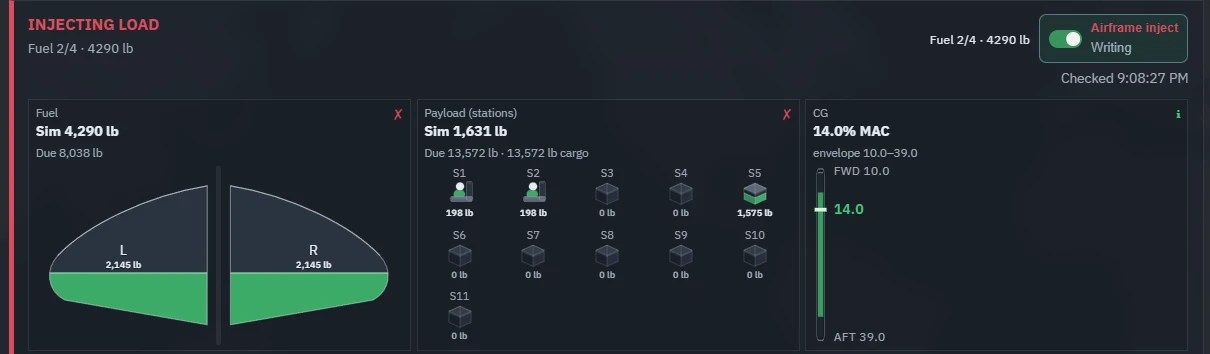
For most light aircraft (and some airliners), turn on the Airframe inject switch in Preflight. Airframe writes fuel and payload into the sim: the switch goes Writing, then Checking, and the tiles update live. The aircraft must be on the ground; some aircraft also need the engines off. If it fails (Failed · retry), turn it on again.
Load in the aircraft's EFB
Many airliners load through their own EFB or FMC. The card says Import OFP in the aircraft EFB: import the SimBrief plan there and load it.
- Keep the EFB in pounds (LB), not kg. Metric mode often writes the wrong mass into the sim and Loaded vs Due fails.
- Cabin jets (Maddog, Fenix, JF): LOAD OFP or Import can overfill the holds. Trim the cargo to MZFW, use Instant Load, then balance the CG yourself.
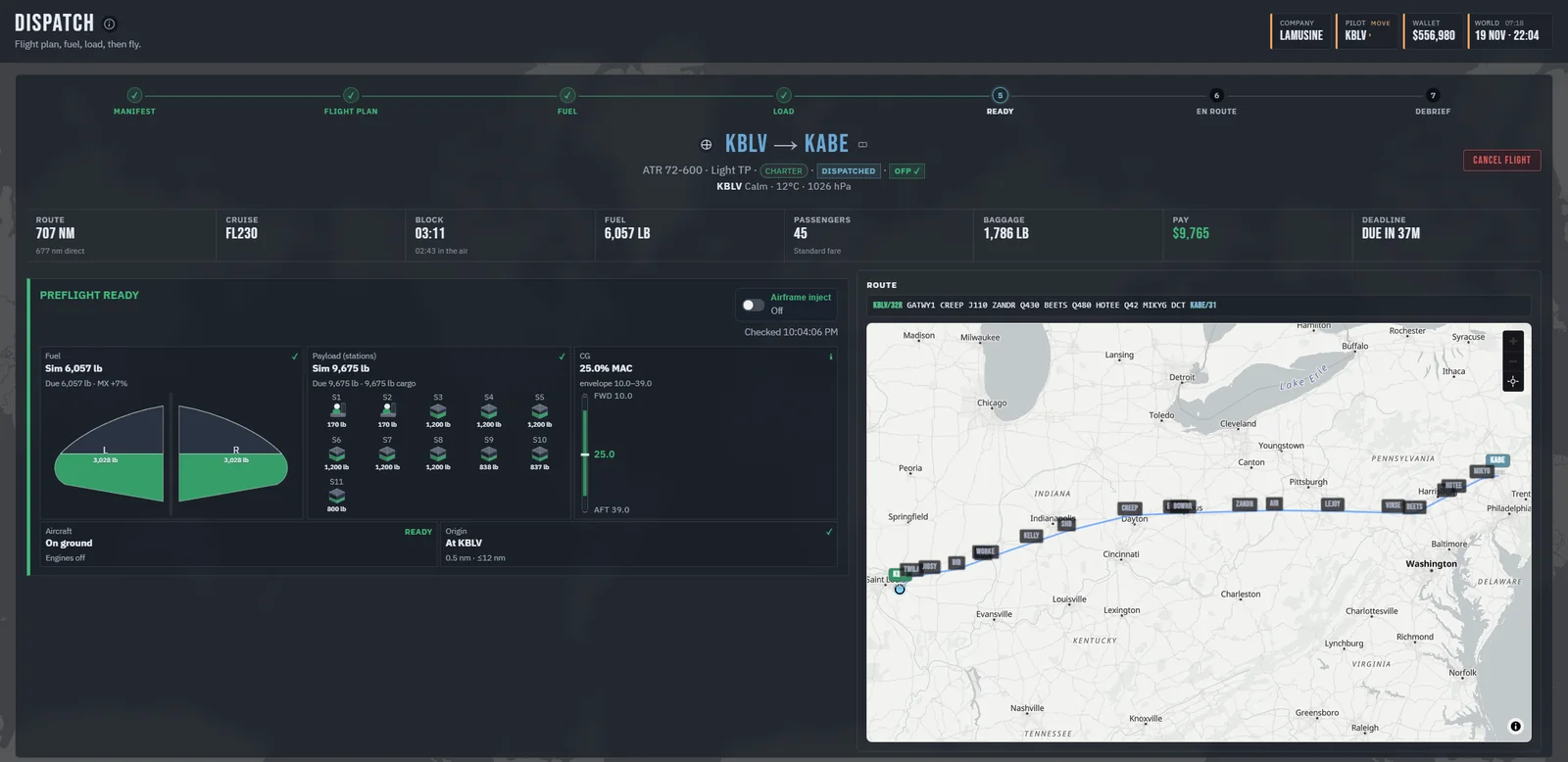
The Preflight card shows the result: tiles for Fuel and Payload (Sim on top, Due below, ✓ or ✗), CG (advice only), the Aircraft (on ground, engines) and the Origin (within 12 nm of the departure airport).
6. Ready
When everything matches, the card reads PREFLIGHT READY and the app plays a short cabin chime (turn it off in Settings → Sound). Dispatch says Preflight ready · Watch connected. Take off in MSFS; departure is detected automatically.
Other titles you may see on this card:
- INJECTING LOAD / CONFIRMING LOAD: loading is in progress.
- NOT AT ORIGIN: the aircraft is too far from the departure airport. Load it there; the flight won't start from elsewhere.
- PREFLIGHT FAILED: Fix the mismatched aircraft load before departure. Check which tile shows ✗.
7. En route
Fly as usual. The Watch follows the flight and marks departure at wheels-up. The status strip shows the phase (Taxi out, Takeoff, Climb, Cruise, Descent, Approach, Landing, Taxi in) and the air time. The Dispatch page shows distance to go, air time and the deadline (Due HH:MM · N min left). The clock keeps running through pauses and crashes.
To settle the flight, at the destination:
- Land and park within 12 nm of the destination airport.
- Stop (below 3 kt) and set the parking brake. The strip reminds you: Set parking brake to settle. Engines can stay on.
A flight also needs enough time in the air (about 70% of the planned route time, 50% on legs under 100 nm; pause and slew don't count). The card says what is missing if it can't settle yet. Then Unloading cargo plays while Airframe saves the pay and the flight log.
8. Debrief and Logbook
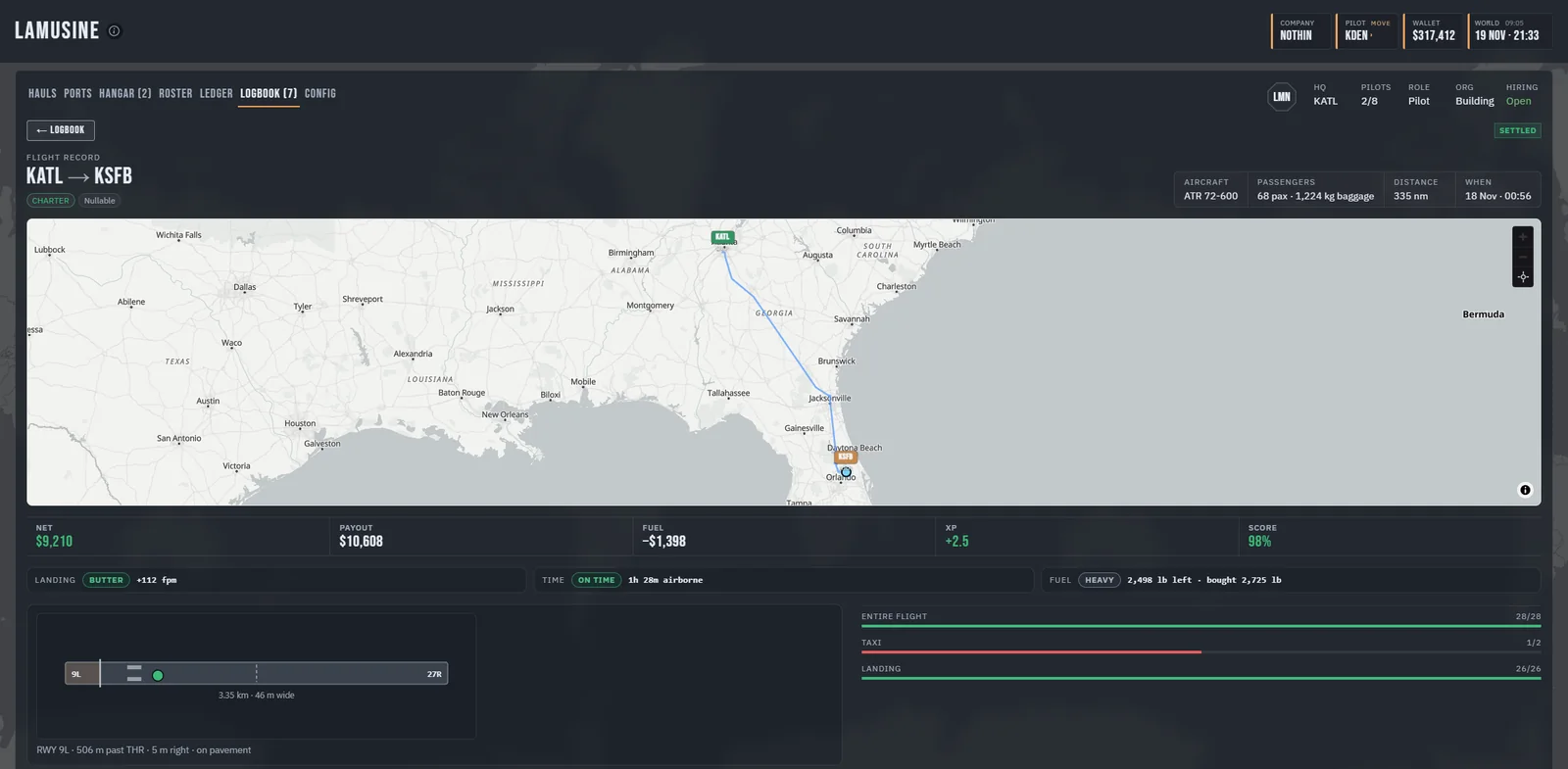
The Flight debrief sums up the leg:
- Money: Net, Payout, and what came off it (late penalty, fuel), plus any weather bonus.
- Landing: your touchdown rate and a badge, from Butter (200 fpm or less) through Soft, Firm, Hard and Rough to Heavy, with where you touched down on the runway.
- Time: On time or Late. Fuel: what was left.
- Score: a flight score in %, with bars for the entire flight, taxi and landing; plus XP and what the flight did for Cargo Ops and Class Ops.
Click Back to Freights for the next job, or Open Logbook. The Logbook keeps every leg; open one for the same debrief. Its filter shows Settled flights (failed ones included) or Cancelled ones.
Crashes end the flight. An impact away from the destination (or the aircraft upside down on the ground) ends it as failed: Cargo lost; no payout. A hard landing or a late arrival only lowers the score or the pay.
Resume after a sim crash
If MSFS crashes or closes mid-flight, the flight stays open in Airframe, with its cargo and air time. There is no time limit other than the delivery deadline, which keeps running.
The sim dropped in flight
Dispatch shows Resume from ICAO, suggesting an airport near where the flight stopped (never the destination itself), and lists the steps:
- In MSFS, start a flight parked at the suggested airport (within 8 nm of it).
- Unpause on the ground. Dispatch opens the flight plan steps.
- Plan from that airport in SimBrief (same payload) and load it.
- Take off and fly to the destination.
Prefer another airport? Change departure lets you pick one, or go back to the contract origin.
Back at the departure airport
If you restart MSFS at the origin, the card reads ON GROUND · RESUME PREP. Turn on Airframe inject to reload fuel and payload (or load in the EFB), then take off again. The flight settles only at the destination.
Cancel a flight
Cancel flight at the top right of Dispatch ends the flight with no payout. There is no fee: the cargo returns to the market and Jet-A bought for the flight is refunded if you haven't taken off. In the air the same button aborts the flight.
Last updated: 20 November 2026 · written for app v0.3.1218