Getting started
SimBrief setup
Every flight is planned in SimBrief. Airframe opens SimBrief with the flight already filled in, reads the plan you generate, and sets the fuel and payload from it.
What you need
- A free SimBrief account (sign up at simbrief.com). No Navigraph subscription is needed.
- Nothing to configure inside SimBrief: you don't need to create your own aircraft profiles for Airframe.
Your username in Settings
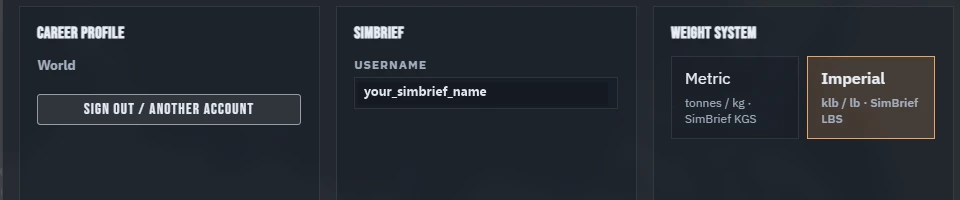
In Airframe, open Settings and type your SimBrief username in the SimBrief card, field Username (your Navigraph alias). If it is empty, Dispatch shows Set SimBrief user instead of opening SimBrief.
The same page sets pounds or kilos for how Airframe shows weights. SimBrief is opened in the same units.
How Airframe pulls the OFP
- On the Flight plan step of Dispatch, click Open SimBrief. SimBrief opens with the origin, destination, aircraft type, registration, passengers and cargo already filled in.
- Click Generate on the SimBrief page. Don't change the airports, aircraft, passengers or cargo there.
- Switch back to Airframe. While Dispatch is open it checks SimBrief every few seconds (Waiting for OFP) and picks up the new plan by itself. There is no button to press.
- When the plan matches the flight, the step is done and an OFP ✓ chip appears in the header.
Need a new plan (different route, edited cargo)? Use Re-open SimBrief and generate again.
Which aircraft row SimBrief uses
SimBrief has several rows for many aircraft (vendor versions, engines, cabin layouts). Airframe picks the right row for you from the aircraft loaded in MSFS, and falls back to SimBrief's default for the type when there is no better match.
Load the aircraft in MSFS before you click Open SimBrief. Without a live aircraft, Airframe can't tell which version you fly and uses the default row, so the plan's empty weight and capacities may not match your aircraft.
Each supported aircraft has a profile that matches its SimBrief row and tells Airframe how to load fuel and payload. Profiles are made and checked by the team ("homologation"); if one is wrong for your aircraft, report it on Discord #homologation.
When the OFP does not match
If the plan doesn't fit the flight, Dispatch shows OFP FAILED (or OFP NEEDS REVIEW) with the reason, for example:
- OFP origin X does not match mission Y or OFP destination …: regenerate with the flight's airports.
- OFP airframe X is not compatible with mission airframe Y: the plan is for another aircraft type.
- OFP cargo … below mission …: SimBrief cut the cargo, usually because of weight limits.
- OFP pax=… but mission expects …: the passenger count differs.
Fix it in SimBrief and generate again; Airframe checks again by itself. Two shortcuts:
- Accept OFP cargo: when SimBrief only cut the cargo, take the lighter load. Pay drops with it and the rest goes back to the board.
- For charters: Accept lighter bags or Drop last group.
Due vs Sim
Once the plan passes, Airframe compares two numbers for fuel and payload:
| Label | Meaning |
|---|---|
| Due | What the flight should carry, from the SimBrief plan you accepted (not from the weight on the freight tile). |
| Sim | What the aircraft in MSFS carries right now, read live. |
Preflight is green when Sim matches Due within a small tolerance (a few percent for fuel). Centre of gravity is shown as advice and never blocks departure. How to load the aircraft so they match: Your first flight → Load.
Last updated: 20 November 2026 · written for app v0.3.1218